
How to add receipts to Found
Keeping receipts saved and organized is a critical step to maintaining tax-ready books. While it’s generally recommended to save receipts for transactions over $75, attaching receipts whenever available helps you stay prepared for tax time.
Here’s how to add receipts to Found:
Upload or scan a receipt on mobile
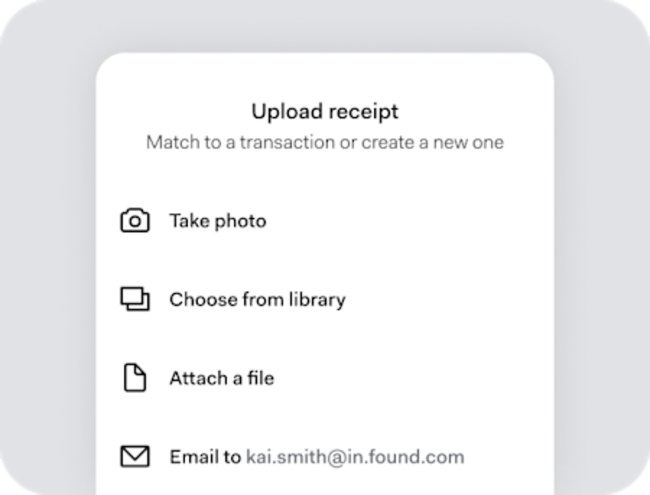
In your Found mobile app, you can see options to add a receipt on-the-go:
- Navigate to the Activity tab (clock icon)
- Tap the + button
- Select “Scan receipt”
- Take a photo, upload from your device, or copy your unique Found email address to email your receipt to Found
- Found will create a new expense and attach the receipt.
Add a receipt to a transaction
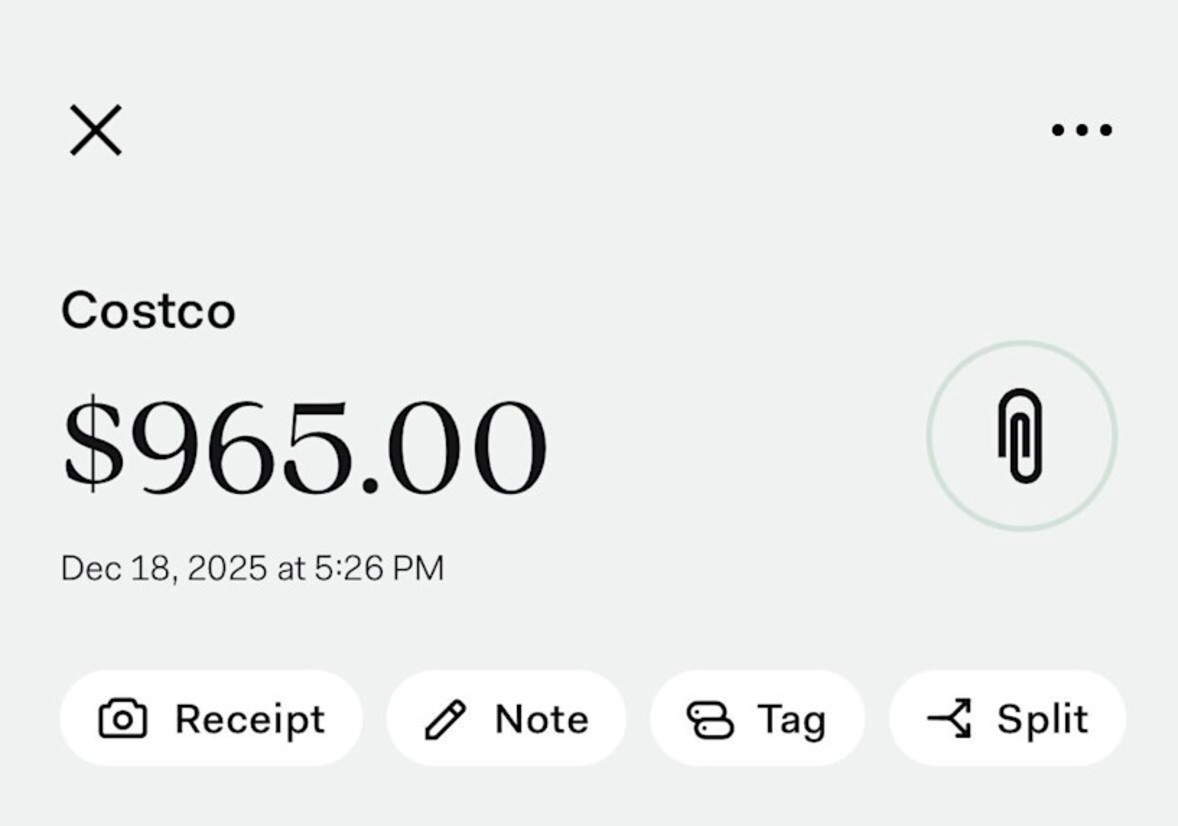
If you have an existing transaction in Found, you can also attach a receipt in your Activity feed.
- Go to your Activity feed and select the transaction
- Tap the Receipt icon below the transaction amount
- Take a photo with your phone or upload an image from your device
Your receipt is now attached to that transaction and safely stored.
Use Found Assistant
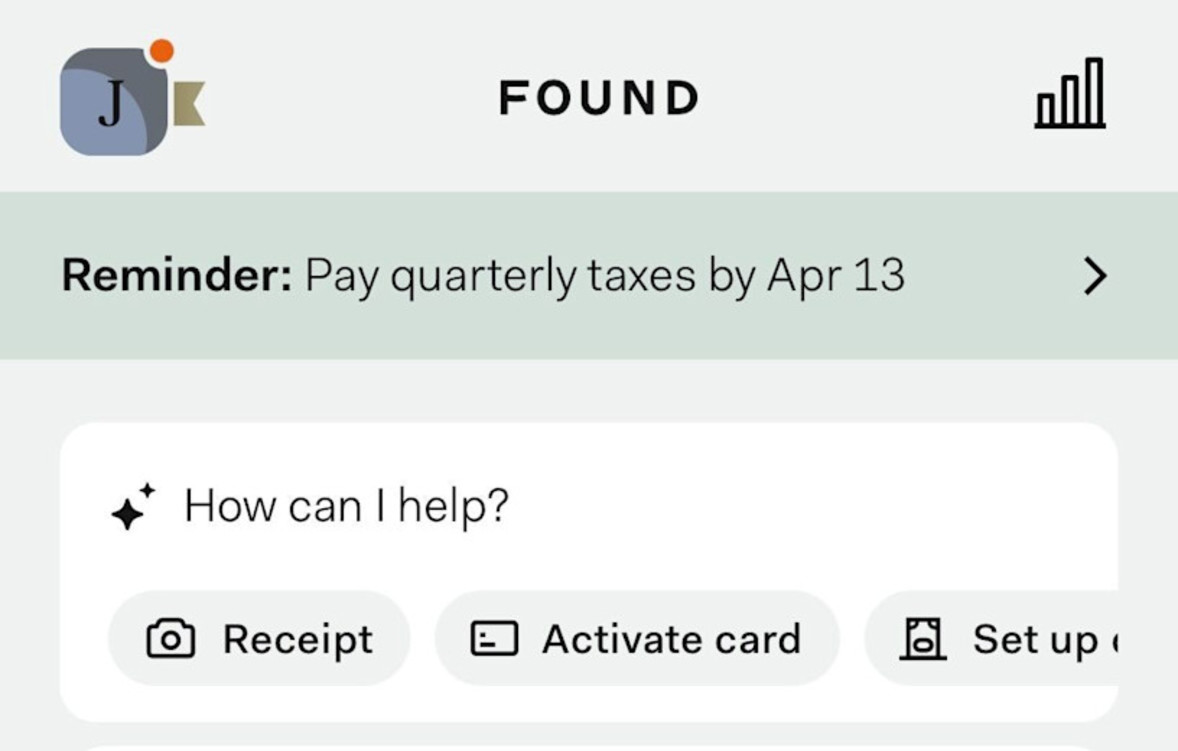
Found Assistant can help streamline receipt management by automatically matching receipts to expenses or creating a new one.
- Tap “How can I help?” at the top of the Banking screen in your Found app or in the top right corner on desktop in order to open Found Assistant.
- Tap the Receipt pill or say that you want to upload a receipt in the chat
- Upload a receipt or take a photo
- Assistant attempts to match the receipt to an existing expense with corresponding information
- If no matching expense exists, Assistant can create a new expense record in just a few taps.
Found does not provide legal or tax advice. Found Assistant is in beta and can make mistakes. Users are advised to consult with professionals with specific advice.
Email receipts to Found
You can forward receipts directly from your inbox to your unique Found email address.
Your unique Found email address will be [your Found Tag]@in.found.com (e.g. for the Found Tag ‘leslie-knoll’, your email would be leslie-knoll@in.found.com)
To find your Found Tag:
- Tap on your profile (top left on mobile, top right on desktop)
- Tap the Settings icon
- Tap Business Information
- Scroll down to Found Tag
Alternatively, you can copy your unique Found email address from the mobile receipt upload flow outlined above.
Once you have your unique Found email address:
- Send an email to that unique Found email address with a receipt attached.
- Found will process each attachment and attempt to match it to an existing transaction.
- If no match is found, Found will create a new manual expense and attach the receipt.
- You’ll receive a confirmation email with a link to review and refine the details if needed.
Team members on your account (admins and cardholders) can also send in receipts, using the email address attached to their own login.
Important: For security, this only works with emails sent from the email address you have on file with Found. Found supports PDF, JPG, and PNG files up to 50MB.