
How do I track my mileage?
If you travel as part of the operation of your business, you can write off the business use of your vehicle.
Sole proprietors have three options for deducting their vehicle expenses in Found: logged business miles, tracked vehicle expenses, and estimated business miles.
- Logged business miles. Found allows you to easily track individual trips that you make. When logging a trip, you’ll enter your miles driven and the date the trip took place, along with an optional name and any notes you might want to include. Found will add your total mileage when considering your mileage deduction.
- Tracked vehicle expenses. If you’re using Found to track vehicle expenses like gas and maintenance, but your vehicle is only partially used for business purposes, this option allows you to set the percentage of time this vehicle is used for your business. We’ll take the sum of your vehicle expenses and multiply that number by this percentage to calculate your business use amount.
- Using the mileage rate. Alternatively, if you’re already tracking specific mileage for business trips, you can enter your estimated annual business mileage here. Found calculates your mileage deduction at a rate of $0.76 per mile.
Found does not track mileage automatically, so be sure to track this separately and keep your estimated mileage up-to-date based on your actual business use. Sole proprietors are able to change their deduction method by tapping Mileage tracking in the settings menu, or from their tax profile.
If you’re not a sole proprietor, you can track your business trips with Found from the Mileage tracking page.
Read our guide on tracking business mileage for taxes for more tips.
How do I upload my trips to Found? (on desktop only)
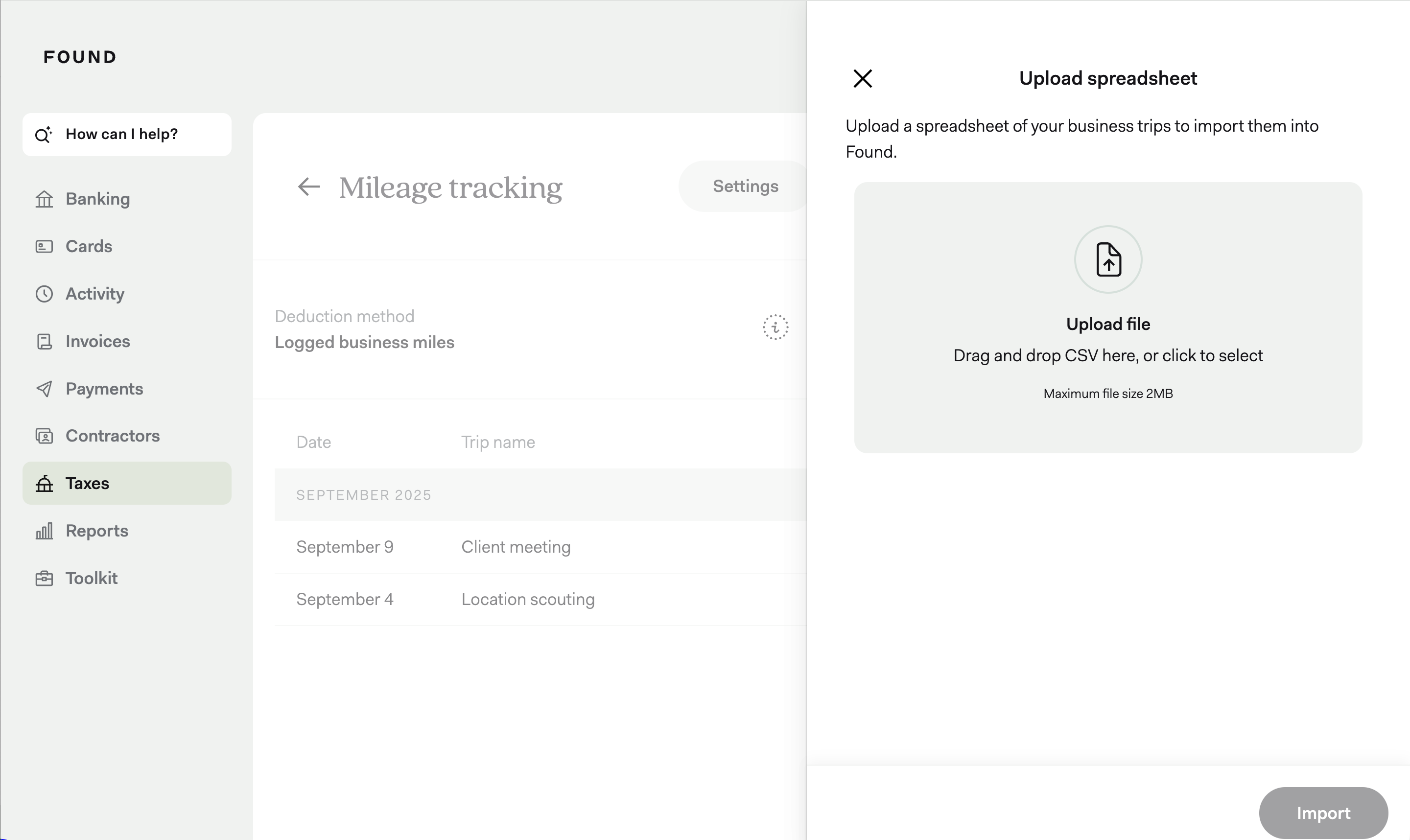
If you’re tracking your business trips in a spreadsheet, you can import up to 1000 of those trips into Found all at once when logged into Found on desktop.
Here’s how:
- Make sure that your spreadsheet has columns for the date of the trip and miles driven. You can also include a name for your trip and a column for notes.
- Export your file as a CSV.
- In Found, navigate to Taxes and choose Mileage tracking.
- Click the Upload spreadsheet button and drag your CSV into the upload area.
- Click Import and Found will automatically parse and upload your CSV into your Found account.
Keep in mind that uploading trips is only available on desktop. You can always add individual trips through the app. Need to upload more than 1000 trips? Let our team know through your Found app.
Using MileIQ software to track mileage? Learn more about how to upload MileIQ CSV to Found.